
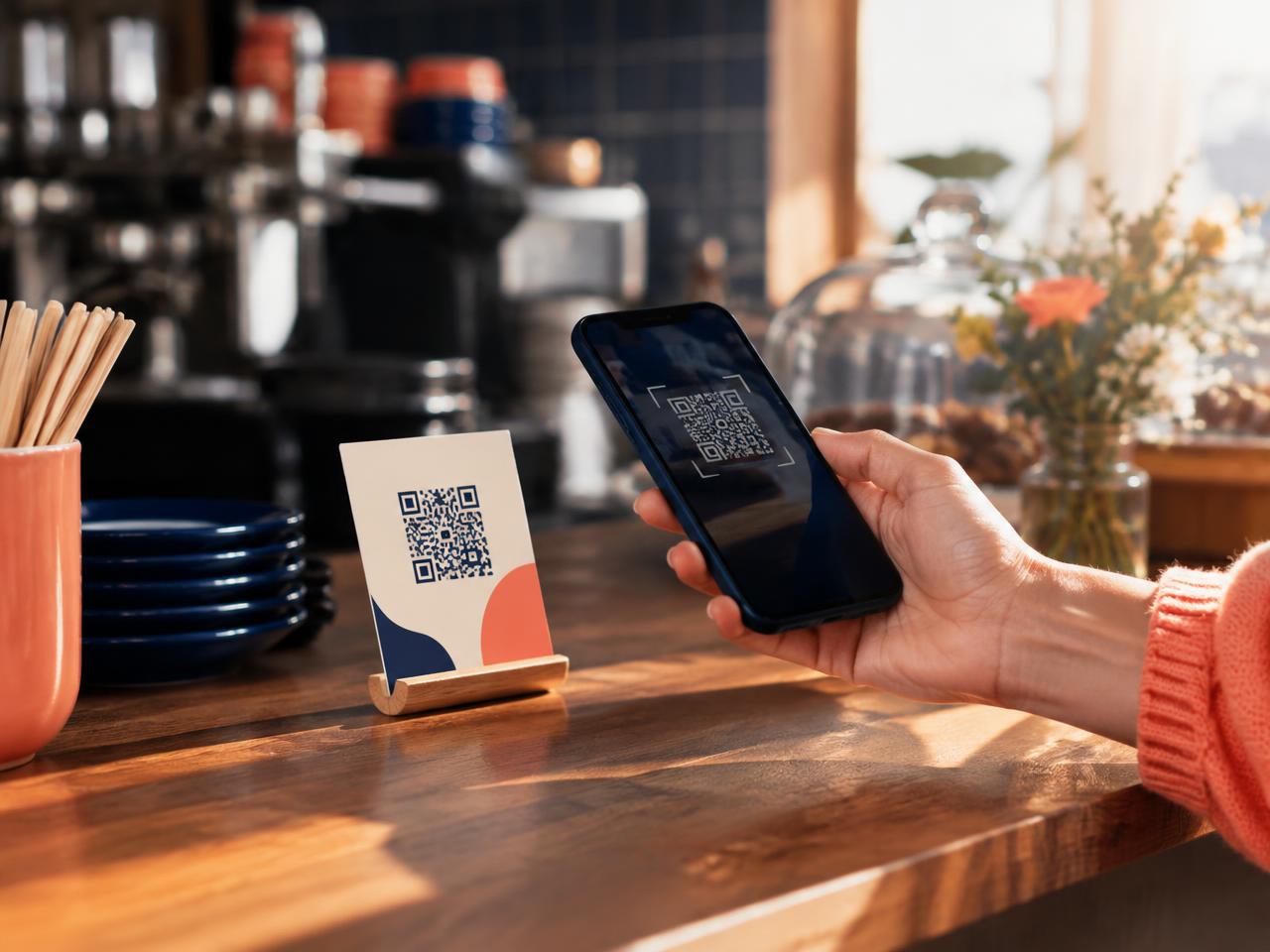
The short answer
Either save the QR code Google provides (Business Profile on a computer → Read reviews → Get more reviews → right-click and save), or use a free generator such as Ranknua's: find your business, pick a design, add your branding, check scan quality and download. Test it before printing.
- Both Google's built-in code and free generators cost nothing.
- Contrast, size and a short invitation matter more than decoration.
- Use one code per location and test the printed version on real phones.
01What is a Google review QR code?
A scannable image containing a link to your business's review form. When a customer scans it with their phone camera, the phone offers to open the link. The code holds no review or rating — it's simply a convenient route to the form, ideal where typing a web address would be awkward.
- Reception desks
- Retail counters
- Restaurant receipts
- Vehicle service invoices
- Tradespeople's job-completion paperwork
- Packaging inserts and thank-you cards
 Related guideHow to get your Google review link and share it with customers
02Create your QR code using Google
- 1
Open your Business Profile
Sign in to the Google account that manages the listing. With more than one location, select the correct one.
- 2
Find the review-sharing option
Open Read reviews, then Get more reviews.
- 3
Save the QR code
Right-click the QR code image and save it. Google currently documents this as a desktop-browser process.
- 4
Test the code
Open the saved image on another screen or print a test copy, scan it with a phone and confirm it opens the right business.
03Create a branded Google review QR code
Google's code works, but you may want a design that matches your brand for a counter card, poster or customer card. Ranknua's free generator lets you find your listing, choose a design, add branding and download print-ready files.
- 1
Identify your business
Search for your business or paste its review link, and check the result matches the correct Google listing.
- 2
Choose a design
Pick a layout that suits where it will appear — a small counter card needs a simpler design than an A4 poster.
- 3
Add your branding
Choose colours that fit your business and add your logo where supported. Decoration must never hurt readability.
- 4
Check scan quality
QR codes rely on contrast, size and a clear margin. Use the scan-quality guidance, then test the export on real devices.
- 5
Download and print
PNG suits everyday print and digital use, SVG scales without losing sharpness, and PDF is convenient for print-ready layouts.
04Where should you put a Google review QR code?
| Placement | Why it works |
|---|---|
| Reception desk | A small sign reminds customers feedback is welcome — keep it friendly and optional |
| Invoices | A natural touchpoint after a completed job for trades and home services |
| Receipts | Easy for retail, cafés and hospitality — don't crowd transaction details |
| Thank-you cards | Invites customers to share their experience later |
| Service-completion paperwork | Cleaners, garages, installers and contractors have a natural finish point |
05What should a Google review QR code sign say?
A good sign says what the code does without pressuring anyone. Three examples you can adapt:
We'd love your feedback

Visited us recently?
Scan to share your experience on Google.
Thanks for choosing us

Your feedback helps us improve our service.
Scan to leave an honest Google review.
How was your visit?

We'd love to hear what you thought.
Scan to review us on Google.
No demands for five stars
Avoid wording that asks for five stars or suggests customers must leave a positive review.
06How big should a Google review QR code be?
There's no single right size — it depends on scanning distance, print quality, contrast and detail. A counter card must scan comfortably at arm's length; a wall poster needs a much larger code. Always test the final printed version from the distance customers will actually scan it. A design that works on screen may fail when printed small.
07Five common QR code mistakes
- 1
Poor contrast
A pale code on a pale background is hard for cameras to read. Choose strong contrast.
- 2
An oversized logo
Covering too much of the code can break scanning. Use the quality checks and test the export.
- 3
Printing too small
Easy to scan on a monitor, unreadable on a tiny sticker. Print a sample before a large batch.
- 4
Linking to the wrong business
Easy when businesses have similar names. Test the destination for every new design.
- 5
No explanation
A bare code gives customers no reason to scan. Add a short line saying it leads to your Google review page.
08Are Google review QR codes allowed?
Yes. Google provides a QR code feature itself and recommends sharing review links at appropriate customer touchpoints. The reviews must still be genuine: no incentives, no selectively asking only happy customers and no pressure towards particular ratings.
09QR codes versus automated review requests
| QR code | Automated review requests |
|---|---|
| Customer starts the interaction | Business sends an appropriate invitation |
| Useful on printed materials | Useful after completed services |
| No message delivery cost | Messaging costs may apply |
| Customer must notice and scan | Customer receives a direct link |
| Simple to set up | Needs customer and workflow data |
The two work well together. A garage might display a QR code at reception while automatically inviting eligible customers to review their experience after collecting their car.
Frequently asked questions
Is a Google review QR code free?+
Yes. Google provides a QR code option, and free third-party generators are also available.
Can I put a Google review QR code on my website?+
You can, but a clickable review link is usually more convenient for someone already on a phone or computer. QR codes are best for moving people from print or a physical surface to a web page.
Can I add my logo to the QR code?+
Yes, with a suitable generator. Keep the logo small enough to preserve scan reliability.
Can I use one QR code for multiple locations?+
Each location should generally have its own review destination. Use a separate code per listing so customers don't land on the wrong branch.
Do Google review QR codes expire?+
A QR code containing a static review URL has no expiry timer of its own, but the destination can change, so check printed codes periodically.
Can I track QR code scans?+
Some QR systems track scans through a managed redirect link. A basic code pointing straight to Google doesn't provide scan analytics by itself.
Sources
- Google: create a link or QR code to request reviews
- Google: tips to get more reviews
- Google: prohibited and restricted content (reviews)
General guidance, not legal advice. Google’s features and rules change; check the linked pages.