
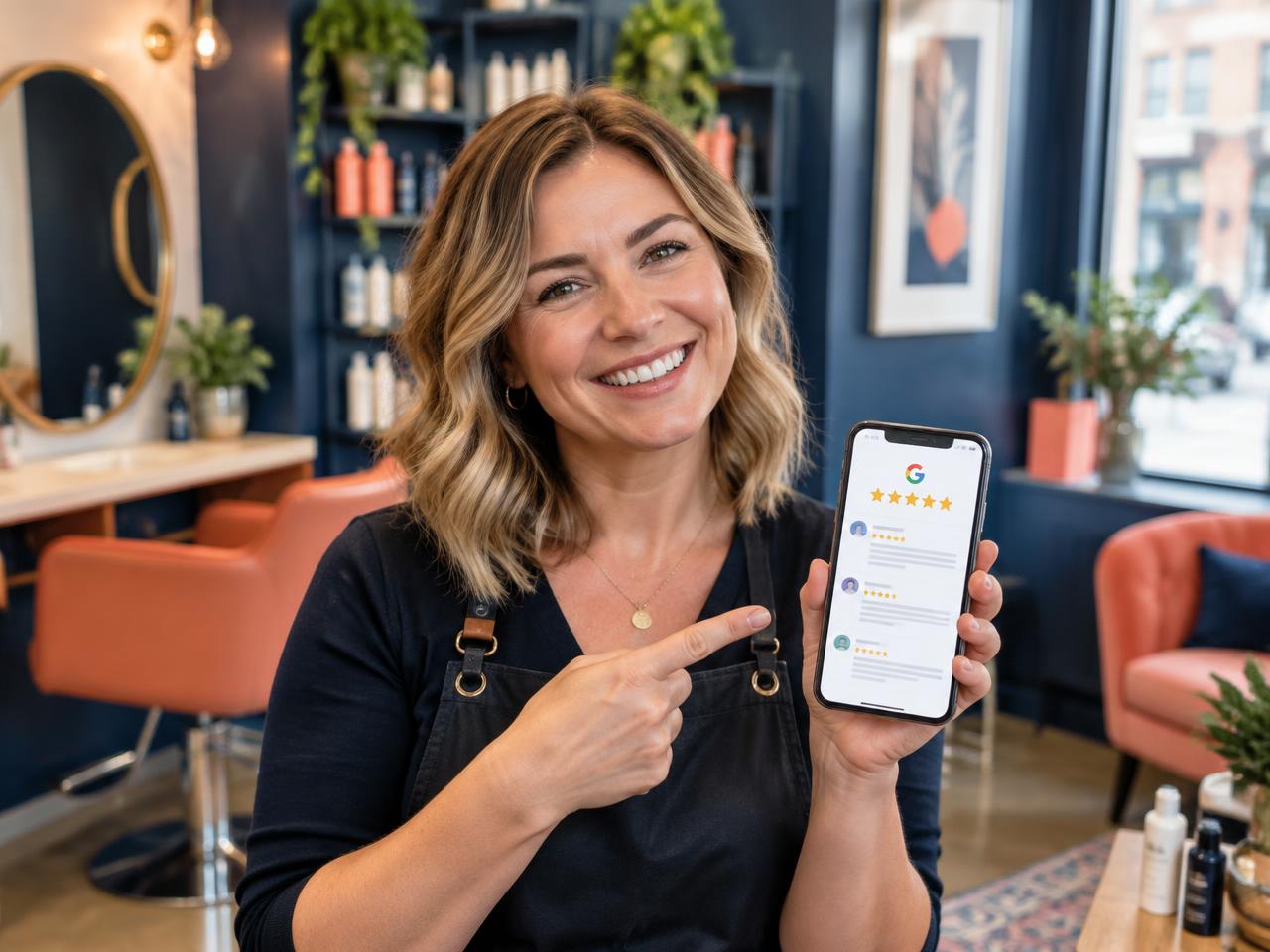
The short answer
Sign in to the Google account that manages your Business Profile, open your profile, select Read reviews, choose Get more reviews and click Copy. Then open the link in a browser to check it leads to the correct business before you share it.
- The link is free and comes from your own Business Profile.
- Test it every time — especially if you have more than one location.
- Invite honest feedback; never ask for five stars or offer a reward.
01What is a Google review link?
A Google review link is a URL that takes customers straight to the Google review form for a particular business. It saves them searching for your listing, finding the reviews section and working out where to leave feedback.
Imagine you run a plumbing company in Dublin. A customer has just had a boiler repaired and wants to leave feedback. Without a direct link they need to search, find the right listing and navigate to its reviews. With one, they land on the review form in a single tap.
The link doesn't create a review
The customer still decides whether to leave feedback, what to write and what rating to give. A review link makes genuine feedback convenient — it must never be used to influence the review itself.
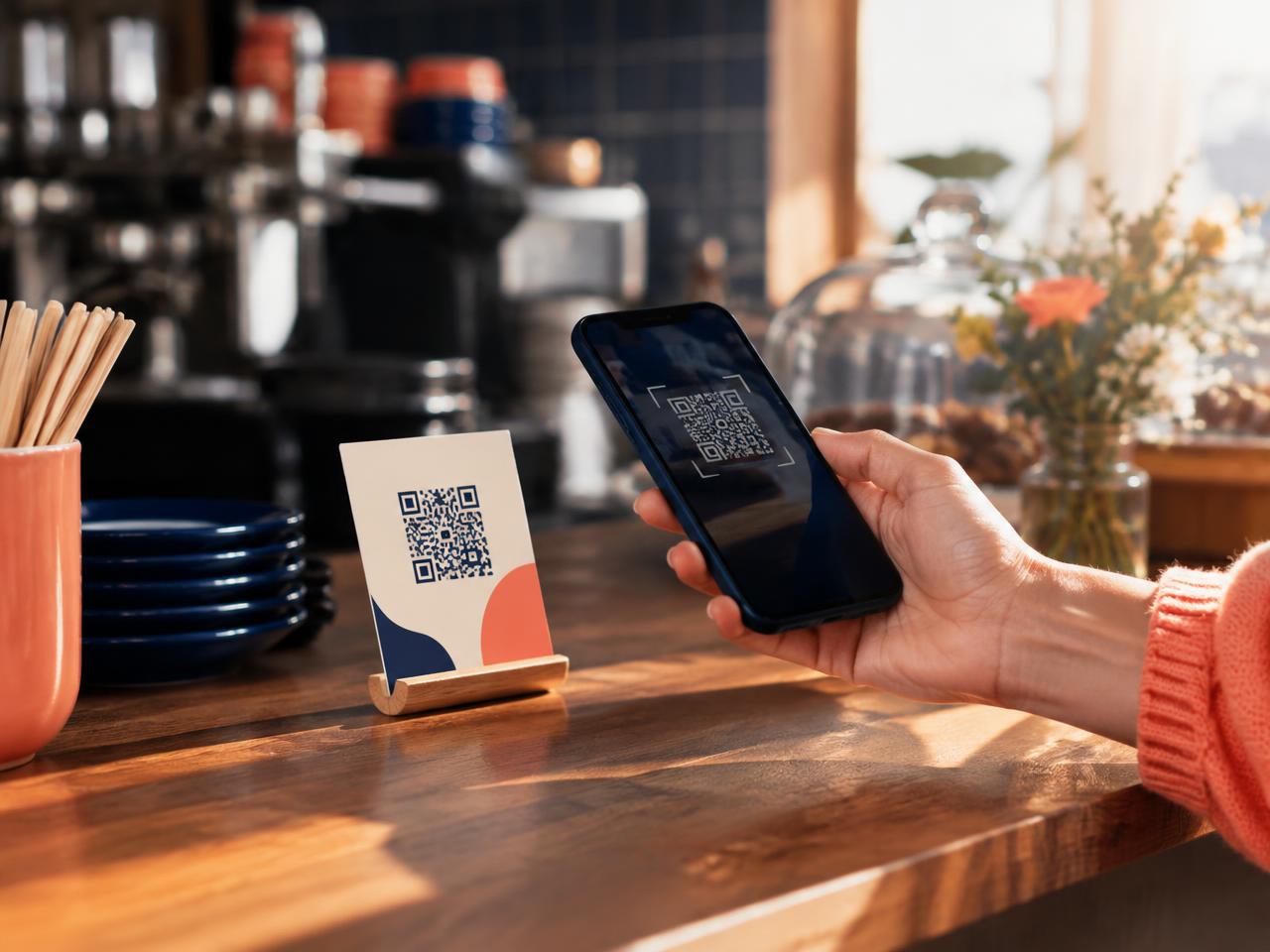 Related guideHow to create a Google review QR code for free
02How to find your Google review link, step by step
- 1
Sign in to Google Business Profile
Visit Google Business Profile, or search your business name while signed in to the Google account that manages the listing. If you manage several locations, make sure you're working with the correct profile.
- 2
Open your reviews
Find the option labelled Read reviews. Google occasionally changes the layout, so its exact position may vary.
- 3
Select Get more reviews
This opens Google's review-sharing options, with a link customers can use to leave feedback.
- 4
Copy your review link
Select Copy and save the link somewhere your team can reach — shared documents, message templates or your CRM. Keep a separate link for each location.
- 5
Test the link
Open it in a separate browser session and check it shows the correct business and opens the review form. If not, return to the right profile and copy it again.
Working from your phone?
You may be able to copy the link from the Business Profile on your phone, but Google's documented QR code download currently needs a computer browser. Retrieve the link once, save it and reuse it — you don't need a new link for every customer.
03Where should you share your Google review link?
| Where | Works well for | Tip |
|---|---|---|
| After completing a service | Trades, cleaners, mobile mechanics | A short thank-you with the link once the job is done |
| In a thank-you email | Purchases and appointments | Don't bury the link under promotions |
| On invoices and receipts | Any business that issues paperwork | Add a short invitation and a QR code |
| On printed signs | Shops, cafés, salons, garages, receptions | Let customers scan later, without staff pressure |
| Customer service follow-ups | Support teams | Invite a review of the overall experience |
Don't reserve the link only for customers you expect to be happy. Invite every eligible customer the same way.
04How to ask customers to use your link
Hi [First Name],

Thanks again for choosing us.

If you have a moment, we'd really appreciate your honest feedback about your experience. You can leave a Google review here:

[Google Review Link]

Your feedback helps us understand what we're doing well and where we can improve.

Thanks,
[Business Name]
Hi [First Name], thanks for choosing [Business Name]. If you'd like to share your experience, you can leave us a Google review here: [Link]. We appreciate your feedback.
Messaging permission
Always make sure you have an appropriate basis for sending customer messages, and honour any opt-outs. For more wording, see our 15 Google review request templates.
05Five common Google review link mistakes
- 1
Sharing the wrong location
Businesses with several branches can send customers to a different location. Check the listing before every campaign.
- 2
Using a general Google Maps search link
A Maps search link makes customers find the business and its review section themselves. Use the direct review link.
- 3
Making the message too complicated
Thank them, invite honest feedback and give the link. That's it.
- 4
Asking only happy customers
Google prohibits selectively soliciting positive reviews. Your process must not filter customers by how positive you expect them to be.
- 5
Offering rewards for reviews
No discounts, free products, cash or other incentives for Google reviews — including incentives to change or remove an existing review.
06Can you automate Google review requests?
Yes. Instead of copying your link into individual messages, review-request software can manage invitations and follow-ups for eligible customers — for example, sending an appropriate invitation after a job is recorded as complete.
Automation should respect customer preferences, direct-marketing rules and Google's review policies. Ranknua manages personalised review requests by WhatsApp, SMS and email, alongside review links, QR codes and reporting.
Frequently asked questions
Is a Google review link free?+
Yes. Google provides businesses with a way to share their review link at no charge.
Do customers need a Google account to leave a review?+
Yes. Customers generally need to be signed in to a Google account. They can create one using an existing non-Gmail email address.
Can I send the same link to multiple customers?+
Yes. You can reuse the link for the same business location.
Can I create a Google review link without owning the business?+
Retrieving the official link through Business Profile management needs the appropriate access. Some tools can identify a public listing and build a supported review destination without full management access.
Can I send Google review links through WhatsApp?+
Google allows review links to be shared through WhatsApp, but you must also comply with privacy, electronic-marketing and platform messaging requirements.
Can I ask customers for five-star reviews?+
No. Invite honest, unbiased feedback rather than asking for a particular star rating.
Sources
- Google: create a link or QR code to request reviews
- Google: tips to get more reviews
- Google: prohibited and restricted content (reviews)
General guidance, not legal advice. Google’s features and rules change; check the linked pages.